
A complicated scenic or experiential model can already contain hundreds of objects, textures, lighting elements, symbols, references, and sheet layers. Start importing detailed 3D assets into that environment and a perfectly manageable Vectorworks file can become painfully large very quickly.
I have run into this problem over and over again. I find a great piece of furniture, prop, architectural element, or human figure online. I import it into Vectorworks, and suddenly I am waiting. And waiting.
Sometimes Vectorworks eventually finishes the import. Sometimes I am left wondering whether the program is processing the model or has simply become stuck. Then, after all that waiting, the object finally appears and it is 200 feet tall, upside down, or sitting somewhere several miles from the internal origin.
The model itself might be perfectly good. It just wasn’t prepared for the way I need to use it.
Why USDZ?
I am an avid Apple user, so I became increasingly interested in USDZ as a way of moving 3D assets through my workflow.
USDZ has an interesting history. Pixar originally developed Universal Scene Description, or USD, as a system for working with extremely complex 3D scenes. Apple worked with Pixar to introduce USDZ in 2018 alongside ARKit 2. Apple described it as a format optimized for sharing 3D objects throughout its ecosystem while retaining geometry, materials, textures, and animation information. (Apple)
The clever part is that a USDZ file is essentially a package. The scene description and its supporting assets can travel together rather than leaving you with a model file accompanied by a folder full of texture images that can easily become disconnected. (OpenUSD)
That is particularly attractive to me as a designer.
I want to download a chair, table, lamp, architectural detail, or prop and have one file that I can archive, preview, move between computers, and eventually bring into Vectorworks.
USDZ also has the advantage of being deeply integrated into Apple’s 3D ecosystem. Apple uses USD as its preferred format for 3D content, and USDZ can be viewed through technologies such as Quick Look and used with RealityKit and ARKit. (Apple Developer)
For my purposes, though, the exciting part isn’t augmented reality.
It is 3D asset management.
The Problem Between Download and Vectorworks
Vectorworks already supports importing USD, USDA, USDC, and USDZ files. It can bring in geometry, textures, and metadata, and its importer provides controls for units, offsets, and the model’s up axis. (Vectorworks Help)
But I realized that I wanted another step before Vectorworks.
When I am working quickly, I don’t want every downloaded 3D asset entering an active production file before I know what is actually inside it.
There are a few basic questions I want answered first:
- How large is it?
- Where is its origin?
- Which direction is up?
- How complicated is the geometry?
- Are the textures actually there?
- Do I really need all of those polygons?
These sound like small things until you have a Vectorworks file full of imported assets.
A highly detailed object that looks fantastic on a product website may contain far more geometry than is necessary for a 1/4” scale scenic rendering. A chair sitting twenty feet in the background does not need the same geometric complexity as a hero object in a product visualization.
Apple makes similar recommendations for real-time USDZ content. Its AR Quick Look documentation recommends managing mesh count, polygon count, and texture resolution to keep models responsive and memory usage reasonable. (Apple Developer)
That principle translates surprisingly well to drafting and visualization:
Use as much model as you need. Not as much model as you can get.
Import Once. Clean It Up. Move On.
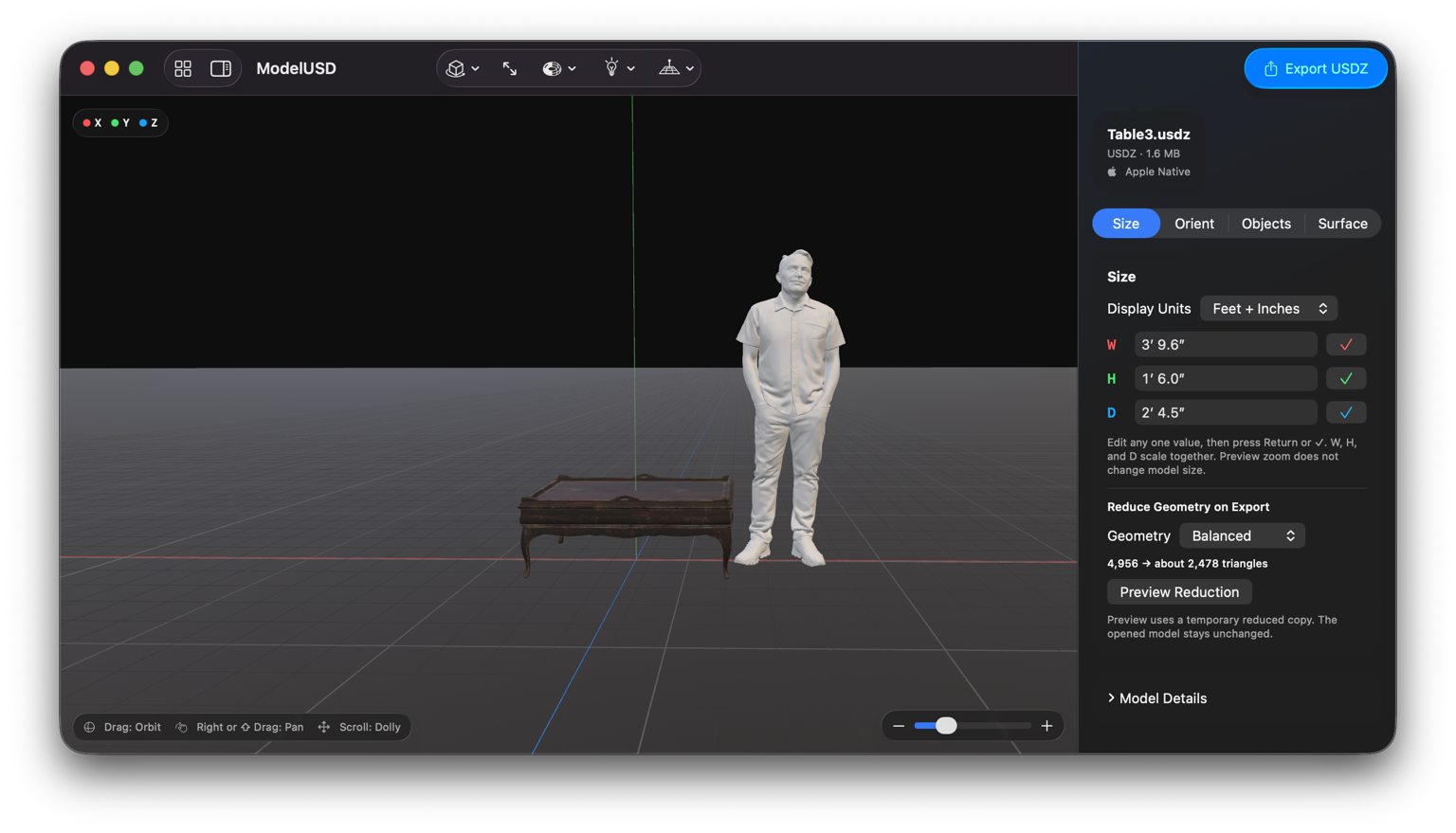
That thinking became ModelUSD.
The idea is intentionally simple.
Instead of importing an unknown 3D model directly into Vectorworks and dealing with the consequences there, I can open it in ModelUSD first.
I can visually inspect the model and see its dimensions. If something that should be a three-foot-wide table thinks it is 300 feet wide, I know immediately.
- 01Correct the scale.
- 02Change its orientation.
- 03Establish a sensible origin.
- 04Inspect the objects and surfaces.
- 05Reduce unnecessary geometry before it ever reaches the Vectorworks project.
Then I export a clean USDZ.
Import once. Clean it once. Use it wherever I need it.
That clean USDZ becomes the asset I keep.
File Size Is Part of the Design Workflow
This is ultimately less about creating another 3D modeling application and more about recognizing that optimization is part of a professional digital workflow.
I don’t need ModelUSD to replace Vectorworks.
I definitely don’t need another Blender.
I need a small utility that lives between finding a model and using a model.
That distinction has become increasingly important as downloadable 3D content has become easier to find. Models created for product visualization, games, scanning, AR, architectural visualization, and manufacturing can all end up in the same scenic-design workflow, even though they were created with completely different assumptions about scale, origin, polygon count, and materials.
ModelUSD gives me a place to normalize those assets before they enter my project.
And USDZ gives me a surprisingly elegant container for keeping the result.
For someone working primarily on Apple hardware, it also feels like a natural format to build around. USD has grown well beyond its original Pixar pipeline, and Apple continues to treat it as a core 3D technology across its platforms. (Apple Developer)
So the goal of ModelUSD isn’t to do everything.
It is to do one small job well:
Take the random 3D model I found and turn it into a clean, correctly scaled, correctly oriented, reasonably sized asset that I actually want to import into Vectorworks.
Because sometimes the best way to make a Vectorworks file faster is to fix the model before it ever becomes part of the Vectorworks file.
— Brandon PT Davis